


RoughAnimator - animation app
4.5844.00 Reviews
App Specs
- Version
- 4.25
- Updated On
- License
- $7.99
- Downloads
- 50,000+
- Developer
- WeirdHat
- Categories
- Art & Design
- Platform
- Android, iOS
Screenshots
 Analysis by AppCompare
I judge hand-drawn animation apps by how quickly I can turn a simple idea into a readable bit of motion, not by how many effects menus they offer. RoughAnimator is built around drawing frame by frame, so its appeal becomes clear when you want to make a sketch move rather than dress up existing footage. My first useful goal would be modest: animate a bouncing ball, a blink, or a hand waving. Finishing a tiny test is a better way to learn the app than beginning with a complicated scene.
What to expect from a frame-by-frame workflow
This is an art and design app from WeirdHat, and the emphasis is on making each drawing part of a sequence. That gives you direct control over a character’s pose and timing, but it also means the work is more hands-on than in apps that create motion from key points or templates. If you enjoy drawing and want the movement to retain the irregular charm of your own lines, that trade-off can be worthwhile. If you mainly want a polished social clip with minimal drawing, a template-led editor is likely a better fit.
The price is $7.99, so I’d treat it as a focused creative tool rather than a casual free doodle pad. It has a 4.4 average from around 3.1 thousand ratings, and more than 50 thousand installs. Those figures can help put its audience in perspective, but they don’t tell you whether its frame-by-frame approach suits your habits. The age rating is Everyone; in practice, the more useful question is whether you’re comfortable putting in the time that drawn animation asks for.
From first launch to a useful first test
When I open RoughAnimator, I’d resist trying to plan a full cartoon before learning the timeline. Start with a simple subject that can be drawn in a few changing poses. A ball moving across the screen is ideal because you can focus on spacing and timing instead of facial expressions or elaborate backgrounds. Make a small sequence, play it back, and look for the moment where the motion feels too fast, too slow, or unexpectedly jumpy.
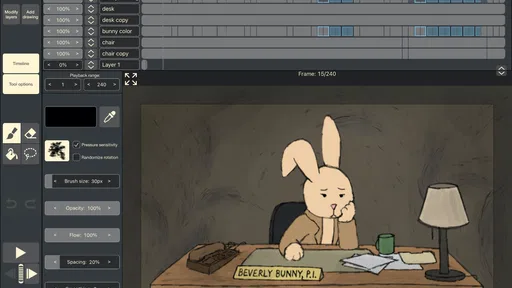
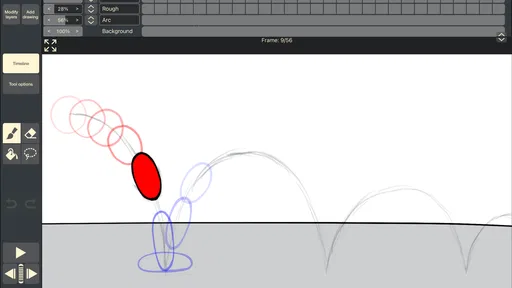
The interface puts the timeline at the bottom, tools to the side, and the drawing area in the middle. That arrangement keeps the main actions close at hand, but the timeline may feel unfamiliar if you have only used painting apps. I’d spend a minute identifying how to select a frame and add or remove one before drawing a long run of images. A little orientation at the start can prevent the frustrating mistake of making edits on the wrong frame.
For a first session, keep the drawing deliberately rough. Use the pencil or brush for the main shape, then make small changes from frame to frame. The aim isn’t to create a finished illustration; it’s to see whether the poses read as movement when played in sequence. Once that works, you’ve learned the central rhythm of the app: draw, check the playback, adjust, and repeat.
Why onion skinning and layers matter
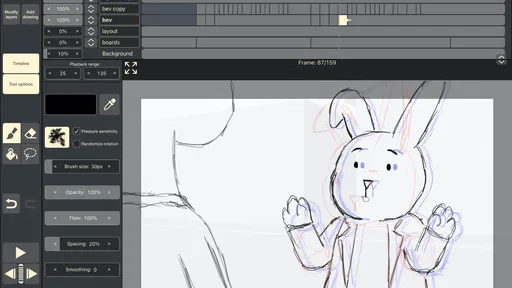
Onion skinning is especially useful when the next drawing needs to relate closely to the previous one. Seeing neighboring frames while you work gives you a visual guide for where a shape came from and where it is going. I find this more practical than relying on memory, particularly for a looping action such as a blink or a small bounce. If the drawings drift unintentionally, the overlays make that easier to spot before the sequence grows.
Worth Reading Before You Choose

EA SPORTS FC Mobile 26 Is a Bigger Football Game, but It Takes Time

Flipboard Shows What News Apps Must Do Beyond the Feed

Switching to Android Auto Means Rethinking Your Driving Routine

Google Calendar Makes a Crowded Week Easier to Manage

Ludo King Makes the Most of the Minutes Between Plans

Baby Panda World Brings Quick Play to Modern Phones, but Its Game Library Feels Busy
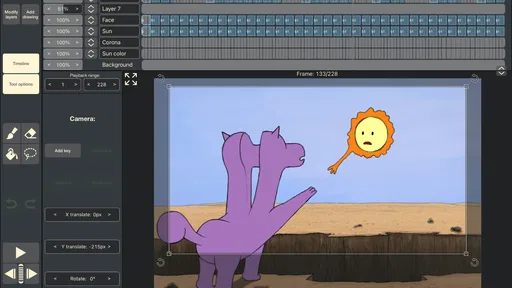
Layers help separate parts of a scene so that every change does not have to be redrawn together. For example, you can keep a steady background apart from a moving character, or organize foreground details separately from the main action. That is useful when revising one element, but it also creates a small organizational responsibility: give layers a clear purpose and avoid making a project harder to read than the animation itself. For a simple test, one or two purposeful layers are often easier to manage than a complicated stack.
Timing, playback, and the first common snag
The timeline is where the drawings become a performance. Adding, deleting, or rearranging frames changes the sequence, while the frame rate affects how quickly it plays. That means a motion problem is not always a drawing problem. If a ball seems to jump, the gap between poses may be too large; if the action feels sluggish, the timing may need a different pace. I’d change one thing at a time and replay the result, rather than redrawing everything at once.
A common point of confusion for newcomers is expecting each frame to behave like a separate finished picture. In animation, a drawing is one contribution to the whole movement, and a rough pose can be more valuable than a beautifully shaded still that is hard to adjust. I’d also check playback early instead of waiting until the end. A sequence can look convincing while you inspect individual frames and still feel awkward in motion.
For an everyday use case, imagine noticing a funny gesture during a break and wanting to turn it into a short hand-drawn loop. I’d sketch only the key positions first, then add the in-between drawings where the action looks abrupt. This keeps the project small enough to finish in a spare session and makes revisions manageable. It also shows where the app’s direct drawing approach shines: you can preserve the personality of a quick sketch rather than forcing it into a preset motion style.
Choosing it over other animation approaches
Compared with a general drawing app, this is a more natural choice when the goal is to work across frames and judge motion as you draw. A standard paint app may feel better for a single polished illustration, while a video editor is usually more convenient for cutting clips, adding titles, or arranging recorded footage. A keyframe-based motion tool can be quicker for moving an object smoothly along a path, but it offers a different kind of control. RoughAnimator makes most sense when the act of drawing the motion yourself is part of the point.
That difference also defines who should skip it. If you dislike repeating drawings, need an automated character rig, or want to assemble a finished video without sketching, this workflow may feel slow. Likewise, someone looking for a full digital painting workspace should compare it with an illustration app instead. I’d choose this for hand-drawn sequences and choose another category of tool when editing footage or creating a single final image is the real task.
Exporting and carrying work into another project
When a short animation is ready, the export choices include video, animated GIF, and a PNG sequence. A video is convenient for watching or sharing a finished result, while a GIF can suit a compact looping reaction. A PNG sequence is useful when you want individual frames available for another stage of a project. Before exporting, I’d replay the animation once more and check that the movement reads at the intended pace; a file can export correctly and still preserve timing that needs adjustment.
Keeping a rough working version before making larger changes is a sensible habit for any frame-based project. It gives you a point to return to if a timing experiment makes the motion less clear. For a longer scene, I’d also plan in small sections rather than drawing an ambitious sequence all at once. Finishing a short, readable action makes it easier to decide what the next shot needs and reduces the risk of losing momentum in a large unfinished project.
Who will get the most from it
I’d recommend it to people who already enjoy sketching, beginners curious about traditional animation principles, and artists who want to build movement one drawing at a time. The current version is 4.22 and the minimum operating system is 10, so it’s worth checking device compatibility before paying. Released on October 15, 2014, the app has had time to establish a clear identity around hand-drawn animation, but the practical test is still whether its workflow matches the way you like to create.
For a first meaningful result, choose one action, keep the background simple, make only the frames needed to communicate the motion, and use onion skinning to keep neighboring drawings aligned. Then adjust timing after playback rather than polishing every frame too early. That approach gives a newcomer a manageable route from a blank project to a small animation they can actually share, while also revealing whether the careful, iterative process feels satisfying or tedious.
Getting Started with RoughAnimator
First things first, firing up RoughAnimator feels like stepping into an animator's studio. It's available on both Android and iOS, so no matter what device you're rocking, you're good to go. The setup is straightforward, and before you know it, you're staring at a blank canvas just waiting for your creative touch.
The interface is refreshingly simple. You've got your timeline at the bottom, tools on the side, and that inviting blank space in the middle. It's a bit like having a digital flipbook, and if you're familiar with traditional animation, you'll feel right at home. For those new to the art, don't worry, the app is intuitive enough to pick up as you go.
Tools of the Trade
Now, let's talk about the tools. RoughAnimator doesn't overwhelm you with options, which is great. You've got your pencil, brush, eraser, and a selection of colors. It's like having a basic toolkit, and sometimes, that's all you need to let your creativity flow. The simplicity here is a strong point; it keeps you focused on animating rather than getting lost in a sea of unnecessary features.
One neat aspect is the onion skinning feature. This lets you see multiple frames at once, which is crucial for smooth transitions and understanding your animation's flow. It's like having a crystal ball that shows the past and future of your creations, helping you tweak each frame to perfection.
Animating Like a Pro
Creating animations with RoughAnimator is all about layers and frames. You can stack multiple layers, allowing you to work on different elements of your animation separately. It's a bit like building a sandwich, layer by layer, and the more you add, the more deliciously complex it becomes.
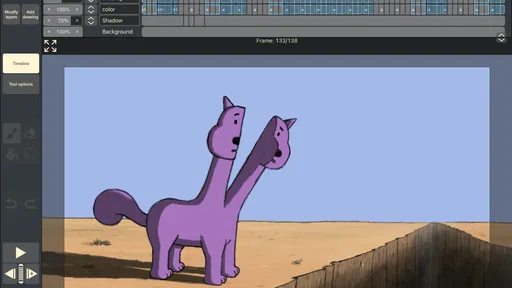
The timeline is where the magic happens. You can add, delete, and rearrange frames. It's a playground for your imagination, and the best part is that you control the pace. Want a quick motion or a slow, dramatic scene? It's just a matter of adjusting the frame rate.
Exporting Your Masterpiece
Once you've poured your heart and soul into your animation, it's time to show it to the world. RoughAnimator offers several export options. You can save your work as a video file, animated GIF, or even a PNG sequence. This flexibility means you can share your creations on social media, send them to friends, or use them in larger projects.
The export quality is solid, ensuring your animations look crisp and professional. It's satisfying to see your work come to life, knowing that you created every frame from scratch.
Final Thoughts
So, is RoughAnimator worth your time? If you’re looking for a straightforward, no-frills animation app, this one’s a winner. It’s perfect for both beginners testing the waters and seasoned animators who appreciate simplicity. The app strikes a balance between being user-friendly and offering enough features to create compelling animations.
Whether you're sketching out a quick scene or delving into a more complex project, RoughAnimator provides the tools you need without overwhelming you. It's like having a portable animation studio in your pocket, ready to capture your ideas whenever inspiration strikes. So go ahead, give it a whirl, and watch your drawings spring to life!
Pros
- User-friendly interface for beginners.
- Supports frame-by-frame and timeline animation.
- Wide range of export options available.
- Customizable brushes for unique styles.
- Works offline without internet access.
Cons
- Limited advanced features for professionals.
- Occasional lag on lower-end devices.
- No built-in character templates.
- Learning curve for complex animations.
- Lacks collaborative editing features.
FAQs for RoughAnimator - animation app
What are the key features of RoughAnimator?
RoughAnimator offers a comprehensive suite of tools for hand-drawn animation, including frame-by-frame drawing, onion skinning, and a variety of brushes. It supports importing audio for syncing with animations and allows for exporting in various formats such as GIF and video. The app is designed to be user-friendly, making it suitable for both beginners and professionals.
Is RoughAnimator suitable for beginners in animation?
Yes, RoughAnimator is designed to be accessible for beginners while still providing advanced tools for professional animators. The interface is intuitive, and there are plenty of tutorials available to help new users get started. However, it may require some patience and practice to master the various features and techniques.
Can I use RoughAnimator on both Android and iOS devices?
RoughAnimator is available for both Android and iOS platforms, allowing users to create animations on a variety of devices. This flexibility means you can work on your projects on-the-go, whether you have a smartphone or tablet, ensuring you can animate wherever inspiration strikes.
Does RoughAnimator support importing and exporting files?
Yes, RoughAnimator supports both importing and exporting files. You can import audio files to synchronize sound with your animation. For export, the app allows you to save your projects as GIFs, videos, or image sequences, making it easy to share your animations across different platforms and devices.
Are there any in-app purchases or subscriptions required?
RoughAnimator is a one-time purchase app, meaning you pay once to unlock all of its features. There are no ongoing subscriptions or in-app purchases required, making it a cost-effective choice for animators who want a robust tool without recurring expenses.


